
How it works
When something goes wrong in one of the SICIP systems, you report it on the support site as a ticket. You get a tracking number straight away. With that number you can see what the support team is doing, read their replies and send more information, until the problem is solved.
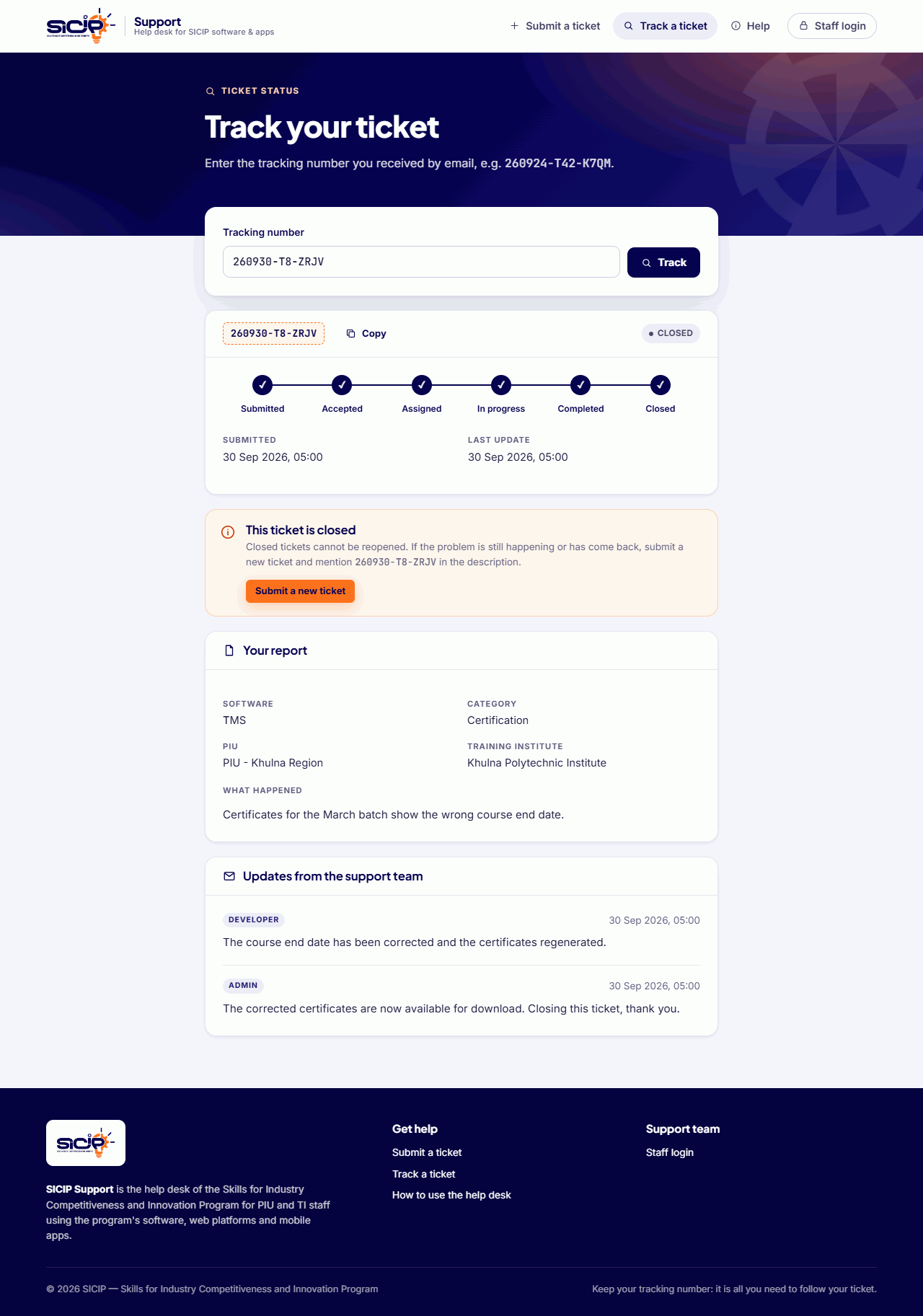
Every ticket moves through these stages. The tracking page shows which one yours has reached:
| Stage | What it means for you |
|---|---|
| SUBMITTED | Your ticket has arrived. The support team hasn't reviewed it yet. |
| ACCEPTED | The support team has reviewed it and added it to their queue. |
| ASSIGNED | A developer has been given your ticket. |
| IN PROGRESS | The developer is working on it and may have replied to you. |
| COMPLETED | The developer has finished their part. The support team checks the work. If more is needed, another developer may pick it up, and the ticket goes back to Assigned. |
| CLOSED | The support team has closed the ticket with a final message, which is also emailed to you. A closed ticket can't be reopened. |
Before you start
Have these ready. They help the team fix the problem faster:
- Your PIU and, if you work at one, your Training Institute.
- Which software the problem is in, and what kind of problem it is (for example, logging in, reports or data entry).
- What you were doing, what you expected to happen, and what happened instead. Include any error message word for word.
- Screenshots or files that show the problem (optional).
- An email address you can read. Your tracking number and the final reply are sent there.
Submit a ticket
Open Submit a ticket. The form has four parts, and a panel beside it shows your progress.
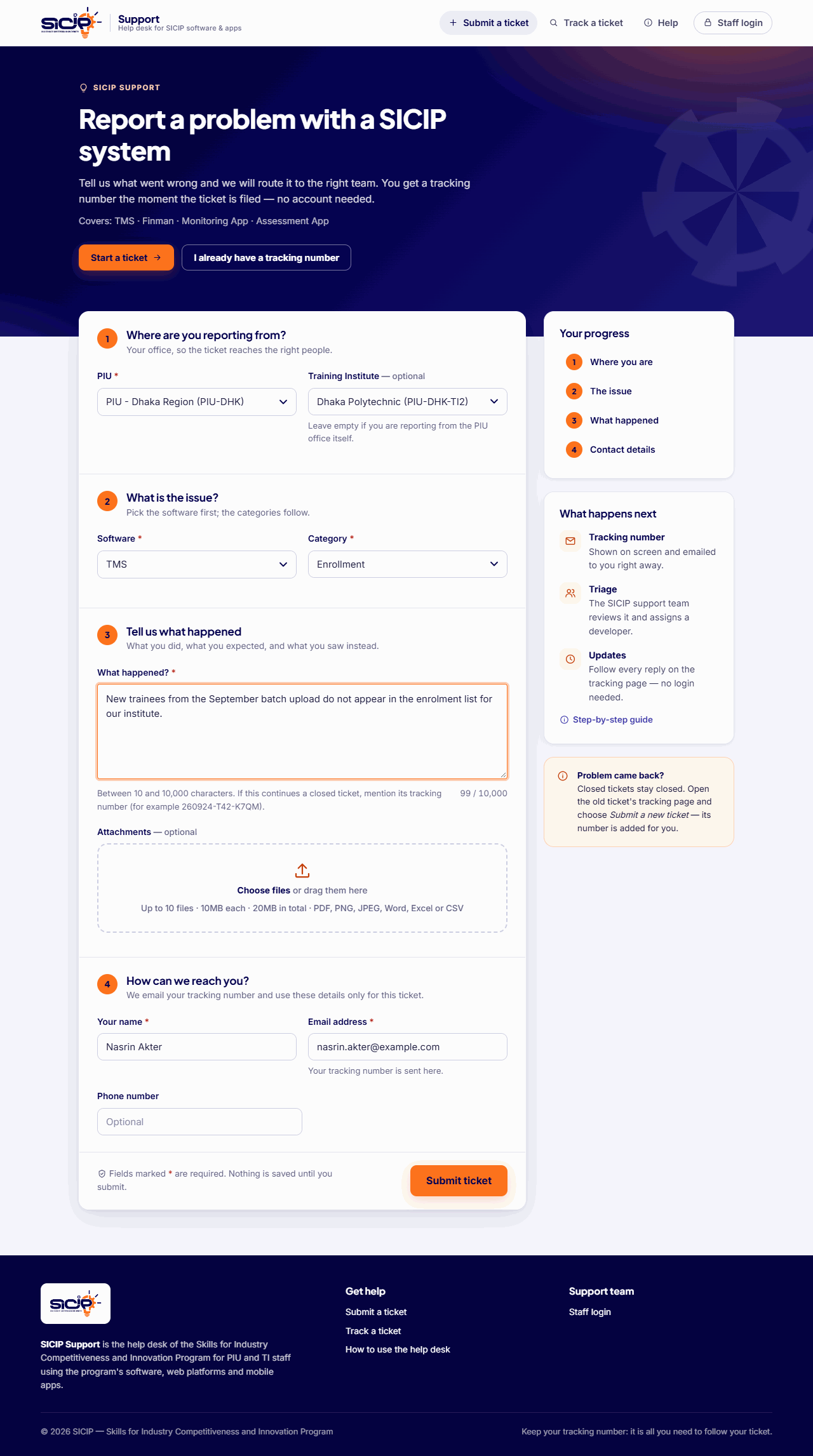
Where are you reporting from? Start typing your PIU's name or code, then pick it from the list that appears (you can also use the arrow keys and Enter). Then type the name of your Training Institute. Leave it empty if you are reporting from the PIU office itself.
What is the issue? Choose the Software, then a Category. The categories change with the software you picked. If none fits, choose Other and describe the category in the box that appears (at least 10 characters).
Tell us what happened. In What happened?, write what you did, what you expected and what you saw instead (10 to 10,000 characters). The buttons above the box add bold, italics, lists and links if they help. You can attach files in Attachments: choose them or drag them onto that area.
How can we reach you? Enter Your name and Email address. Phone number is optional. Check the email address carefully: you need it later to reply on your ticket.
Select Submit ticket. The button shows Submitting… while the files upload, so select it only once.
Files you can attach
| File types | PDF, PNG, JPEG, Word (.doc, .docx), Excel (.xls, .xlsx) and CSV |
| Size | Up to 10 MB per file and 20 MB in total |
| Number | Up to 10 files per ticket, counting files you add in later replies |
If the form comes back with an error message, fix the fields marked in red and choose your files again. For security, browsers don't keep chosen files when a form is sent back, and nothing is saved until the whole form is accepted.
On a phone
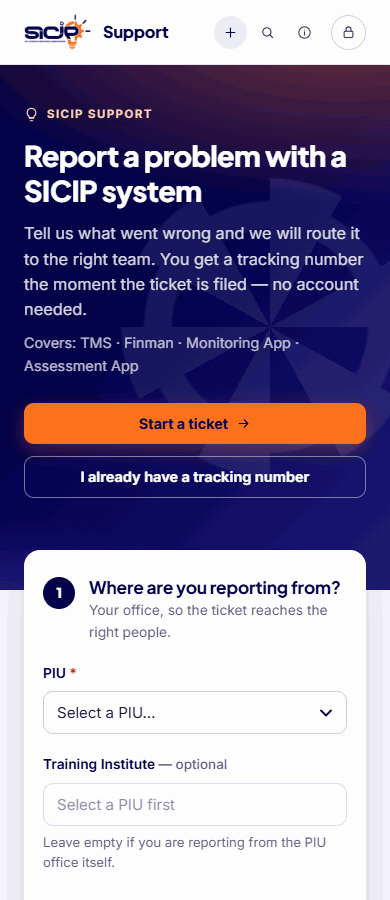
The form works the same way on a phone. The sections stack one under another.
Your tracking number
When the ticket is accepted, the site shows your tracking number, for example 260924-T42-K7QM. Select Copy to copy it. The same number is emailed to you with a Track your ticket link.
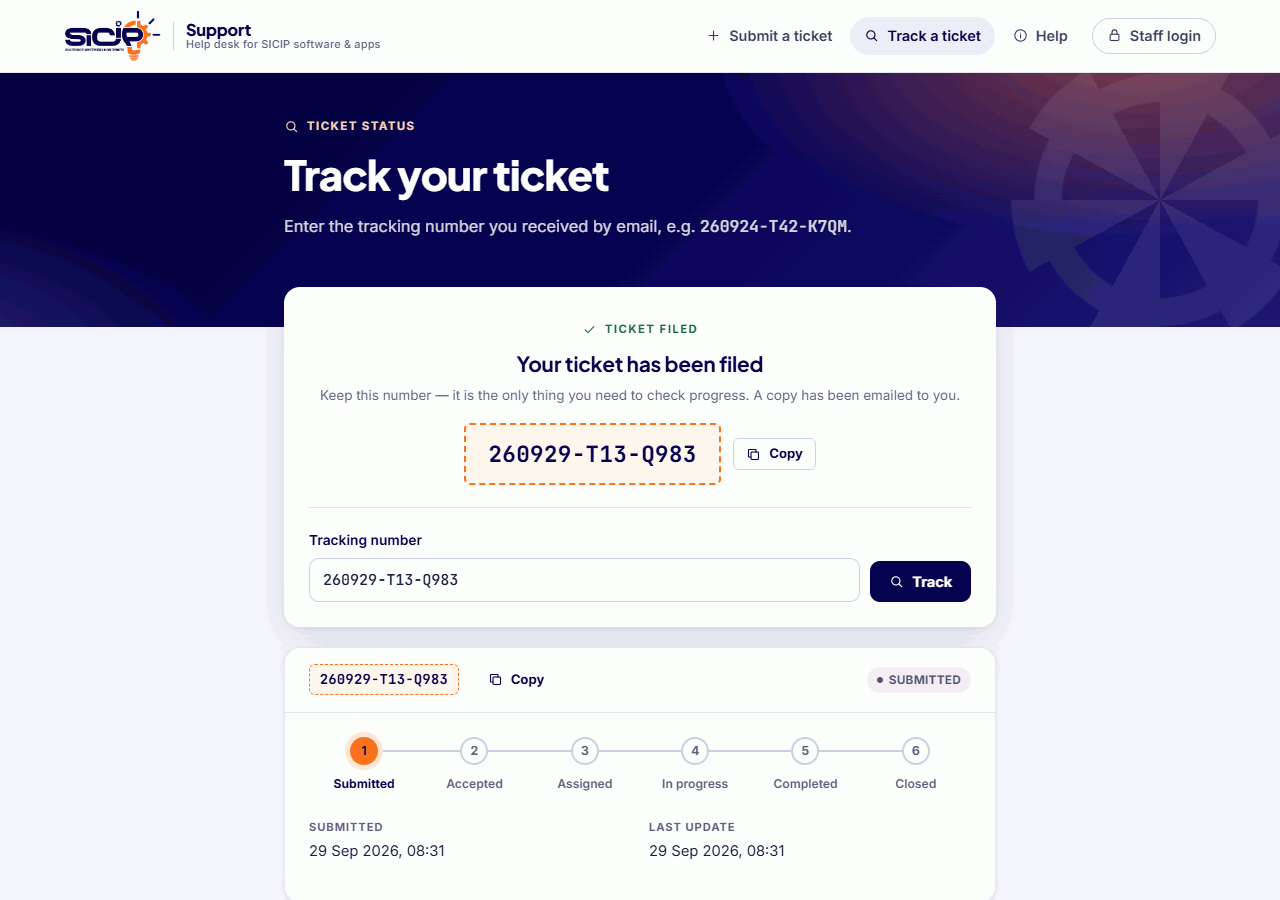
Keep the tracking number. It is the only thing you need to check your ticket. There is no password. The number is random, so nobody can guess another person's ticket.
Check progress
Open the Track your ticket link in your email, or select Track a ticket at the top of this site.
Enter your tracking number and select Track.
The page shows:
- the current stage, on a progress bar;
- when you submitted the ticket, and when it was last updated;
- Your report: what you sent (software, category, PIU and institute, your description and the files you attached), so you can read the replies alongside it;
- Updates from the support team: every reply, with who sent it (Admin or Developer) and when. Your own replies are marked You. Each time the team replies, you also get an email with their message and a link back to this page.
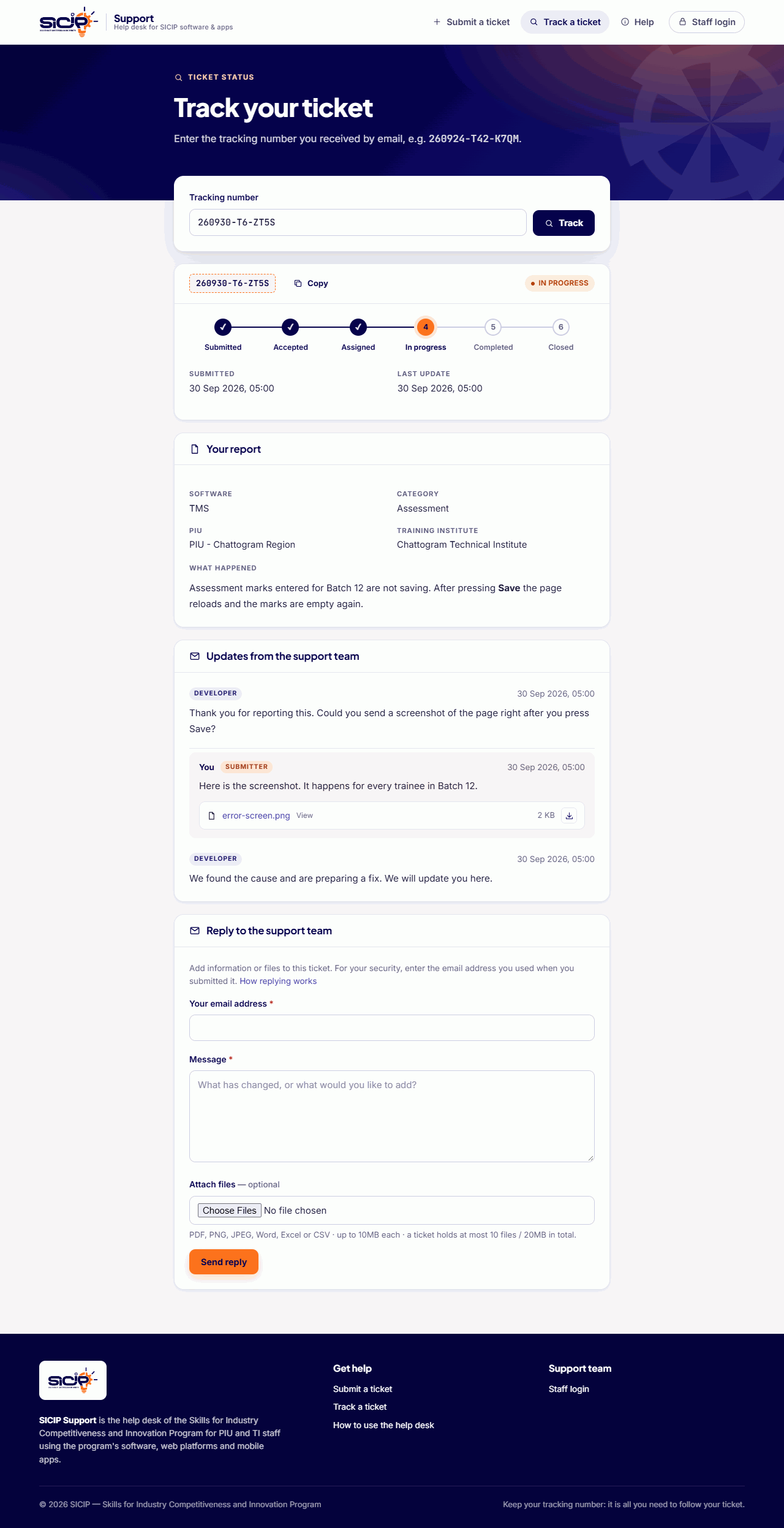
If the ticket changes while you have the page open, a banner offers Reload so you can see the new update.
If the site says No ticket found, check the number for typing mistakes. Capital or small letters don't matter. The last four characters never use the letters I, L or O or the digits 0 and 1, so a character that looks like one of those is a different one.
Reply to the support team
Use the reply form under the updates to answer a question from the team, add information, or send more files. It is only available while the ticket is open.
In Your email address, enter the email you used when you submitted the ticket. This proves the ticket is yours. Capital letters don't matter.
Write your Message (at least 2 characters; the buttons above the box add bold, lists and links), and attach files if you need to. The file limits above include files from earlier replies.
Select Send reply. Your reply appears in the updates, and the team is notified.
Select a file in the updates to open it: PDFs and images open in a new tab (the small download button beside them saves a copy); Word, Excel and CSV files download. A file link works for 60 minutes; after that, reload the page to get a fresh one.
"This email address does not match the ticket" means the address is different from the one on the ticket. Use the address the tracking-number email was sent to.
When your ticket is closed
The support team closes a ticket when the problem is solved, or when there is nothing more to do. You receive a ticket closed email with their final message, and the tracking page shows the ticket as closed.
Closed tickets are final. You can't reply to them and they can't be reopened. If the problem is still happening or comes back later:
Open the old ticket's tracking page.
Select Submit a new ticket. The form opens with Follow-up to and the old tracking number already at the start of the description.
Describe what is happening now and submit as usual. You get a new tracking number, and the team can see the link to the old ticket.
Install the app on your phone
You can put SICIP Support on your Android phone's home screen and open it like any other app. There is nothing to download from a store.
Open this site in Chrome on your phone.
Select Install on the banner at the bottom of the screen. If there is no banner, open Chrome's menu (⋮) and choose Install app or Add to Home screen.
Open SICIP Support from your home screen. It opens on the ticket form; Track a ticket is at the top.
On the tracking page, Your recent tickets lists the tickets you have opened on this phone, so you don't need to type the number again. The list stays on your phone only; Forget these clears it.
Questions
I didn't receive the email with my tracking number.
Check your spam or junk folder first. The number is also shown on screen right after you submit, so if you copied it you can still track the ticket. Emails can also be delayed if the mail server is busy.
I lost my tracking number.
Search your email for the message from SICIP Support. If you can't find it, contact the SICIP support team with your name, your PIU and roughly when you submitted. They can find the ticket for you.
Can I change or delete a ticket after submitting it?
No. To correct or add something, send a reply from the tracking page. If you submitted the same problem twice, reply on one of them to say so, and the team will close the duplicate.
A file was refused.
Check the type and size limits above. The site also checks the file's content, so a file renamed to look like a PDF is refused. Take a screenshot as PNG or JPEG, or save the document as PDF, and try again.
Why did my ticket go from Completed back to Assigned?
Some problems need more than one developer. When one developer finishes their part, the team may assign the next one. The ticket is only finished when it is CLOSED .
Who can see my ticket?
The SICIP support team, and anyone who has your tracking number. The tracking page never shows staff contact details. Treat the tracking number like a reference number you share only with colleagues who need it.